





- Top
- WiFi & Connectivity
- How to Connect
How do I connect to the WiFi on Windows or Mac?
Windows
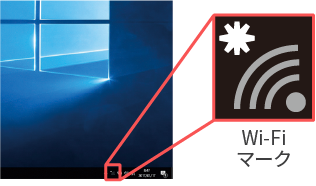
① Click the WiFi icon to open the network menu.
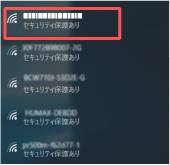
② Select the SSID you want to connect to.
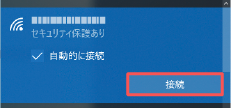
③ After selecting the SSID, a checkbox and Connect button will appear.
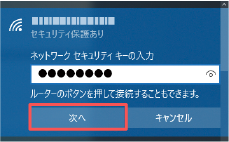
④ When prompted to enter the network security key, enter the PASS shown on the rental device and click Next. The connection is now complete.
Mac
① Click the WiFi icon in your device's status bar.

② A list of available networks will appear. Select the SSID that matches the one shown on the rental device.
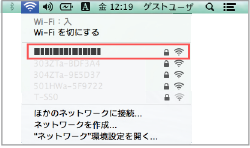
③ When prompted for a password, enter the PASS shown on the rental device and click Connect.
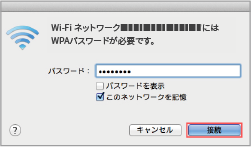
① Click the WiFi icon to open the network menu.
② Select the SSID you want to connect to.
③ After selecting the SSID, a checkbox and Connect button will appear.
④ When prompted to enter the network security key, enter the PASS shown on the rental device and click Next. The connection is now complete.
Mac
① Click the WiFi icon in your device's status bar.
② A list of available networks will appear. Select the SSID that matches the one shown on the rental device.
③ When prompted for a password, enter the PASS shown on the rental device and click Connect.
Was this answer helpful in resolving the issue?
Thank you for your cooperation with the survey
Please share your opinions and feedback
We will use your feedback to help us improve our services.
Submission complete
Thank you for your valuable feedback.